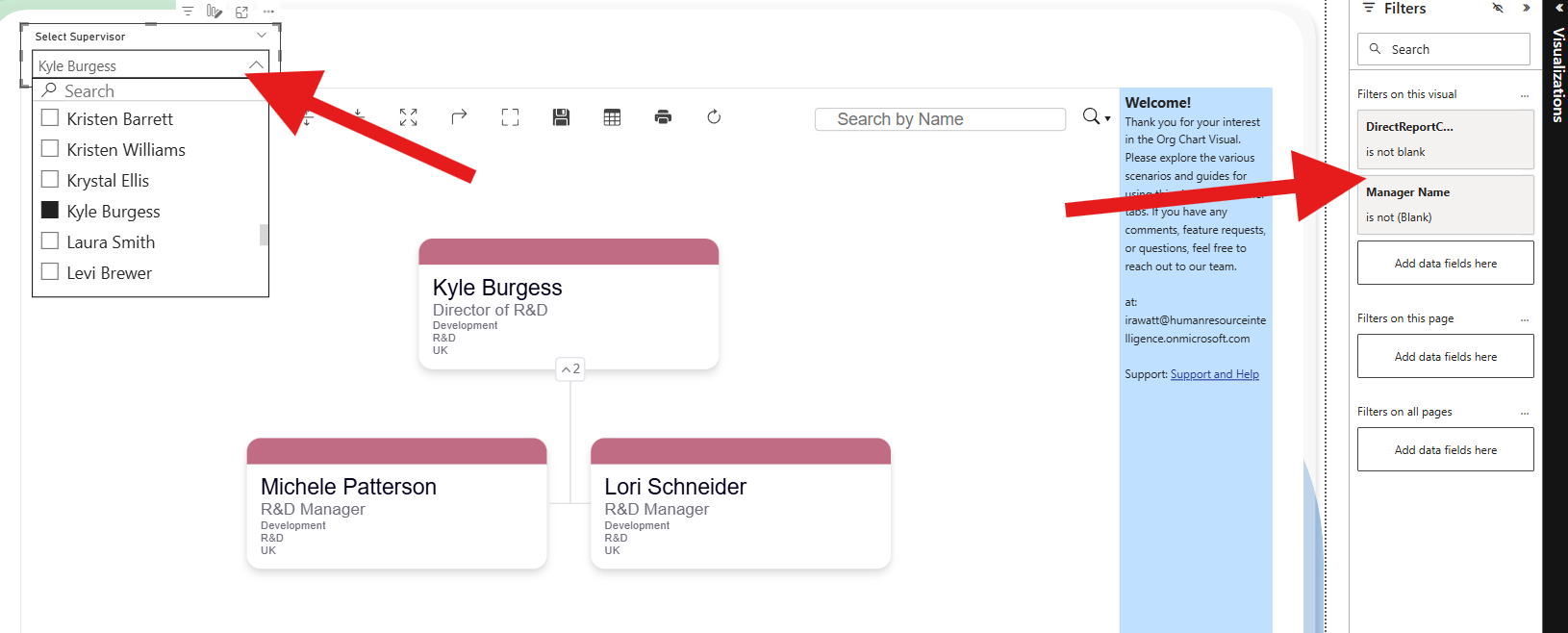

Create Reporting Lines (Path) Using Power Query (M)
This guide explains how to generate reporting line paths in Power BI using Power Query (M).
The query builds a Path field based on Employee ID and Manager ID,
which you can then use with the Org Chart Drag & Drop visual.
Step 1 — Prepare Your Example Report & Data
You can either:
- Use the example report provided: ReportingLineFilter.pbix with the sample Excel file, or
- Point the query to your own Excel file with similar columns.
The M code below expects an Excel file with at least these columns:
Employee IDManager IDName
Other columns are removed later in the query. If you’re using your own file,
update the file path in the File.Contents step.
Step 2 — Open Power Query and Create a Blank Query
- Open your Power BI report.
- Go to Home → Transform Data to open Power Query Editor.
- In Power Query, go to Home → New Source → Blank Query.
- Right-click the new query in the Queries pane and select Advanced Editor.
Step 3 — Paste the M Code
Replace any existing code in the Advanced Editor with the M code below.
Important:
Update the file path in
File.Contents("C:\Users\irawa\Desktop\Structural Issues.xlsx")
to match your own Excel file location. Ensure the column names used in the query
exist in your sheet, or remove/comment out any that don’t.
let
    Source = Excel.Workbook(
        File.Contents("C:\Users\irawa\Desktop\Structural Issues.xlsx"),
        null,
        true
    ),

    Sheet1_Sheet = Source{[Item = "Sheet1", Kind = "Sheet"]}[Data],

    #"Promoted Headers" =
        Table.PromoteHeaders(
            Sheet1_Sheet,
            [PromoteAllScalars = true]
        ),

    #"Changed Type" =
        Table.TransformColumnTypes(
            #"Promoted Headers",
            {
                {"Employee ID", Int64.Type},
                {"Manager ID", Int64.Type},
                {"Name", type text},
                {"Job Title", type text},
                {"Department", type text},
                {"Team", type text},
                {"Country", type text},
                {"Contract Type", type text},
                {"Seniority Level", type text},
                {"Department Color", type text},
                {"Structural Issues", type any},
                {"Comment", type text},
                {"Salary", Int64.Type},
                {"Budget", type text},
                {"Budget Colour", type text}
            }
        ),

    #"Removed Columns" =
        Table.RemoveColumns(
            #"Changed Type",
            {
                "Job Title",
                "Department",
                "Team",
                "Country",
                "Contract Type",
                "Seniority Level",
                "Department Color",
                "Structural Issues",
                "Comment",
                "Salary",
                "Budget",
                "Budget Colour"
                // Only include these if they actually exist in your sheet:
                // "dottedline",
                // "Budget 2"
            }
        ),

    Base = #"Removed Columns",

    // Add Path column WITHOUT a separate BuildPath function
    #"Added Path" =
        Table.AddColumn(
            Base,
            "Path",
            each
                let
                    startId = [Employee ID],

                    pathList =
                        if startId = null then
                            {}
                        else
                            List.Generate(
                                () => [Current = startId],
                                each [Current] <> null,
                                each
                                    let
                                        row =
                                            Table.SelectRows(
                                                Base,
                                                (r) => r[Employee ID] = [Current]
                                            ),
                                        manager =
                                            if Table.RowCount(row) = 0 then
                                                null
                                            else
                                                row{0}[Manager ID],
                                        next =
                                            if manager = [Current] then
                                                null
                                            else
                                                manager
                                    in
                                        [Current = next],
                                each [Current]
                            ),

                    pathText =
                        if List.IsEmpty(pathList) then
                            null
                        else
                            Text.Combine(
                                List.Transform(
                                    List.Reverse(pathList),
                                    each Text.From(_)
                                ),
                                " > "
                            )
                in
                    pathText,
            type text
        ),

    #"Removed Columns1" =
        try
            Table.RemoveColumns(#"Added Path", {"dottedline", "Budget 2"})
        otherwise
            #"Added Path",

    #"Split Column by Delimiter" =
        Table.ExpandListColumn(
            Table.TransformColumns(
                #"Removed Columns1",
                {
                    {
                        "Path",
                        Splitter.SplitTextByDelimiter(" > ", QuoteStyle.None),
                        let
                            itemType = (type nullable text) meta [Serialized.Text = true]
                        in
                            type {itemType}
                    }
                }
            ),
            "Path"
        ),

    #"Changed Type1" =
        Table.TransformColumnTypes(
            #"Split Column by Delimiter",
            {{"Path", Int64.Type}}
        ),

    #"Removed Columns2" =
        Table.RemoveColumns(
            #"Changed Type1",
            {"Employee ID"}
        ),

    #"Renamed Columns" =
        Table.RenameColumns(
            #"Removed Columns2",
            {{"Path", "Employee ID"}}
        ),

    #"Changed Type2" =
        Table.TransformColumnTypes(
            #"Renamed Columns",
            {{"Employee ID", type text}, {"Manager ID", type text}}
        )
in
    #"Changed Type2"
Click Done, then Close & Apply to load the query.
Step 4 — Create the Relationship
Connect the new Supervisor/Team table to your main dataset.
- Go to Model View.
- Drag the Team or Supervisor column from the new table onto the matching ID column in your main table.

Step 5 — Add the Slicer
- Insert a Slicer visual onto your report page.
- Add the reporting line field from the new table into the slicer.