

Layer-Based Org Slicer and Dynamic Layer Columns (Power Query)
This pattern adds a slicer such as Layer 2 – Bill that keeps Bill and his full span
(every direct and indirect report). Layer 1 is the top of the hierarchy: employees with a blank or null
Manager ID. The number of layers does not need to be fixed in advance: optional M steps add
Layer 1 Name, Layer 2 Name, and so on, up to the deepest level in your data on each refresh—
applied inside your existing headcount query, not in a duplicate employee table.
Simpler alternative: For a classic supervisor/team slicer without layer labels, see Create a Supervisor/Team Slicer for the Org Chart Visual.
Step 1 — Power Query M (copy from below)
Each block is ready for the Advanced Editor: // comments at the top explain what to name the query and how it
connects to headcount. Copy the whole block including the comments. Optional download of the same script:
Power Query Script.txt.
Query 1 — name the query OrgHierarchySlicer
Blank query:
Paste below, then set Source to your employee grain (e.g. Source = Headcount) and remove duplicate
type/clean steps that headcount already applies.
// QUERY 1 — Name this query: OrgHierarchySlicer
// Bridge table for the slicer. Layer 1 = blank/null Manager ID. Each SlicerLabel
// (e.g. Layer 2 - Bill) expands to Bill plus all direct and indirect reports.
// Relationship: this query's [Employee ID] (many) -> your base Headcount [Employee ID] (one).
// Slicer field: [SlicerLabel]. Hide [AnchorEmployeeID] from the report if not needed.
// Replace Source with your headcount query (e.g. Source = Headcount) when not using sample data;
// remove duplicate type/clean steps if Headcount already applies them.

let
    Source = Table.FromRows(Json.Document(Binary.Decompress(Binary.FromText("i45WMlTSUQIip/wkpVidaCUjIBsk5JSZkwMWMIYK+GZmp4IFTKACwYm5YL4pkA3S5QXTYQYXgCgwB7KNwRpycirBIhZQEffEoiKIiCWQZwrRkwsRMTQAckHCIZkwbYaGUCGg1Yl5JRmJSrGxAA==", BinaryEncoding.Base64), Compression.Deflate)), let _t = ((type nullable text) meta [Serialized.Text = true]) in type table [#"Employee ID" = _t, #"Manager ID" = _t, Name = _t]),
    #"Changed Type" = Table.TransformColumnTypes(Source, {{"Employee ID", type text}, {"Manager ID", type text}, {"Name", type text}}),

    WithCleanMgr = Table.AddColumn(
        #"Changed Type",
        "Manager ID Clean",
        each
            let
                m = [Manager ID],
                m2 = if m = null or Text.Trim(m) = "" then null else m
            in
                if m2 = [Employee ID] then null else m2,
        type nullable text
    ),
    BaseTable = Table.RenameColumns(
        Table.RemoveColumns(WithCleanMgr, {"Manager ID"}),
        {{"Manager ID Clean", "Manager ID"}}
    ),

    MgrPairs = List.Zip({BaseTable[Employee ID], BaseTable[Manager ID]}),
    MgrMap = Record.FromList(
        List.Transform(MgrPairs, each _{1}),
        List.Transform(MgrPairs, each _{0})
    ),
    GetManager = (empId as text) as nullable text =>
        if empId = null then null else try Record.Field(MgrMap, empId) otherwise null,

    DepthOf = (empId as text) as number =>
        List.Count(
            List.Generate(
                () => [id = empId],
                each [id] <> null,
                each [id = GetManager([id])],
                each 1
            )
        ),

    ByMgr = Table.Group(
        Table.SelectRows(BaseTable, each [Manager ID] <> null),
        {"Manager ID"},
        {{"DirectReports", each [Employee ID], type list}}
    ),
    DirectReportsMap =
        if Table.IsEmpty(ByMgr) then
            Record.FromList({}, {})
        else
            Record.FromList(ByMgr[DirectReports], ByMgr[Manager ID]),

    AllDescendants = (mgrId as text) as list =>
        let
            direct = try Record.Field(DirectReportsMap, mgrId) otherwise {},
            nested = List.Transform(direct, each AllDescendants(_))
        in
            List.Combine({direct, List.Combine(nested)}),

    WithDepth = Table.AddColumn(BaseTable, "LayerDepth", each DepthOf([Employee ID]), Int64.Type),
    WithLabel = Table.AddColumn(
        WithDepth,
        "SlicerLabel",
        each "Layer " & Text.From([LayerDepth]) & " - " & [Name],
        type text
    ),
    WithSpan = Table.AddColumn(
        WithLabel,
        "SpanEmployeeIDs",
        each List.Combine({{[Employee ID]}, AllDescendants([Employee ID])}),
        type list
    ),
    PreExpand = Table.DuplicateColumn(WithSpan, "Employee ID", "AnchorEmployeeID"),
    Expanded = Table.ExpandListColumn(PreExpand, "SpanEmployeeIDs"),
    Renamed = Table.RenameColumns(Expanded, {{"SpanEmployeeIDs", "Employee ID"}}),
    OrgHierarchySlicer = Table.SelectColumns(Renamed, {"SlicerLabel", "AnchorEmployeeID", "Employee ID"})
in
    OrgHierarchySlicer
Optional — dynamic Layer N Name columns (merge into headcount)
Existing headcount query:
Append this block after your last step, or make BaseTable your final step—do not create a second headcount table.
// QUERY 2 — Optional: merge into your EXISTING Headcount query (do not create a second table)
// Adds Layer 1 Name, Layer 2 Name, … up to the deepest level in the current refresh.
// Open your headcount query -> Advanced Editor -> append this logic after your last step,
// or replace the opening Source/BaseTable chain so BaseTable = your final step name.
// Same cleaning rules as Query 1 if you still use the full block from sample Source.
// Not required for the span slicer (Query 1 alone filters Bill and all descendants).

let
    Source = Table.FromRows(Json.Document(Binary.Decompress(Binary.FromText("i45WMlTSUQIip/wkpVidaCUjIBsk5JSZkwMWMIYK+GZmp4IFTKACwYm5YL4pkA3S5QXTYQYXgCgwB7KNwRpycirBIhZQEffEoiKIiCWQZwrRkwsRMTQAckHCIZkwbYaGUCGg1Yl5JRmJSrGxAA==", BinaryEncoding.Base64), Compression.Deflate)), let _t = ((type nullable text) meta [Serialized.Text = true]) in type table [#"Employee ID" = _t, #"Manager ID" = _t, Name = _t]),
    #"Changed Type" = Table.TransformColumnTypes(Source, {{"Employee ID", type text}, {"Manager ID", type text}, {"Name", type text}}),

    WithCleanMgr = Table.AddColumn(
        #"Changed Type",
        "Manager ID Clean",
        each
            let
                m = [Manager ID],
                m2 = if m = null or Text.Trim(m) = "" then null else m
            in
                if m2 = [Employee ID] then null else m2,
        type nullable text
    ),
    BaseTable = Table.RenameColumns(
        Table.RemoveColumns(WithCleanMgr, {"Manager ID"}),
        {{"Manager ID Clean", "Manager ID"}}
    ),

    MgrPairs = List.Zip({BaseTable[Employee ID], BaseTable[Manager ID]}),
    MgrMap = Record.FromList(
        List.Transform(MgrPairs, each _{1}),
        List.Transform(MgrPairs, each _{0})
    ),
    GetManager = (empId as text) as nullable text =>
        if empId = null then null else try Record.Field(MgrMap, empId) otherwise null,

    DepthOf = (empId as text) as number =>
        List.Count(
            List.Generate(
                () => [id = empId],
                each [id] <> null,
                each [id = GetManager([id])],
                each 1
            )
        ),

    NameById = Record.FromList(BaseTable[Name], BaseTable[Employee ID]),

    WalkUpN = (empId as nullable text, n as number) as nullable text =>
        if n <= 0 or empId = null then
            empId
        else
            @WalkUpN(GetManager(empId), n - 1),

    NameAtLayerFromTop = (empId as text, layerFromTop as number) as nullable text =>
        let
            d = DepthOf(empId),
            steps = d - layerFromTop,
            ancestorId = if layerFromTop > d then null else WalkUpN(empId, steps)
        in
            if ancestorId = null then null else try Record.Field(NameById, ancestorId) otherwise null,

    Depths = List.Transform(BaseTable[Employee ID], each DepthOf(_)),
    MaxDepth = if List.IsEmpty(Depths) then 0 else List.Max(Depths),

    HeadcountWithLayerNames = List.Accumulate(
        List.Numbers(1, MaxDepth),
        BaseTable,
        (tbl, n) =>
            Table.AddColumn(
                tbl,
                "Layer " & Text.From(n) & " Name",
                each NameAtLayerFromTop([Employee ID], n),
                type nullable text
            )
    )
in
HeadcountWithLayerNames- Query 1 — OrgHierarchySlicer: a separate bridge query for the slicer, with
SlicerLabel(e.g.Layer 2 - Bill),AnchorEmployeeID, andEmployee ID(one row per person in that anchor’s span). Point itsSourceat the same employee grain as your headcount (e.g.Source = Headcountonce your base query is namedHeadcount), instead of the sample JSON. - Optional layer columns (script block 2): add these steps to your existing headcount query
so
Layer N Namecolumns appear on that table. Do not create a second headcount table or duplicate query—merge the M into the query you already use for the org chart.
In both blocks, replace the sample Source / early steps with your real data (or, for block 2, continue from
your headcount query’s last step name and only paste the logic after your columns are already typed and
cleaned). Align names with Employee ID, Manager ID, and Name.
Step 2 — Paste into Power Query
- In Power BI, go to Transform Data → Power Query Editor.
- Ensure your base headcount query is named and shaped as you want it (one row per employee, with
Employee ID,Manager ID,Name). This is the only employee table you need in the model. - Create a Blank Query, open Advanced Editor, and paste only the first
let … in OrgHierarchySlicerblock. Name the queryOrgHierarchySlicer. Replace the sampleSourceline so it references your headcount query (e.g.Source = Headcount) and remove any duplicate type/clean steps that already exist in headcount—your goal is for the bridge to read the same grain as headcount. - Optional — dynamic layer columns: open your headcount query → Advanced Editor.
Append the second script block’s logic after your existing steps, or replace the block’s opening lines so
BaseTable(or equivalent) refers to your query’s final step before the layer logic, instead of loading the sample table again. Do not create a separate query namedHeadcountWithLayerNames. - Click Close & Apply.
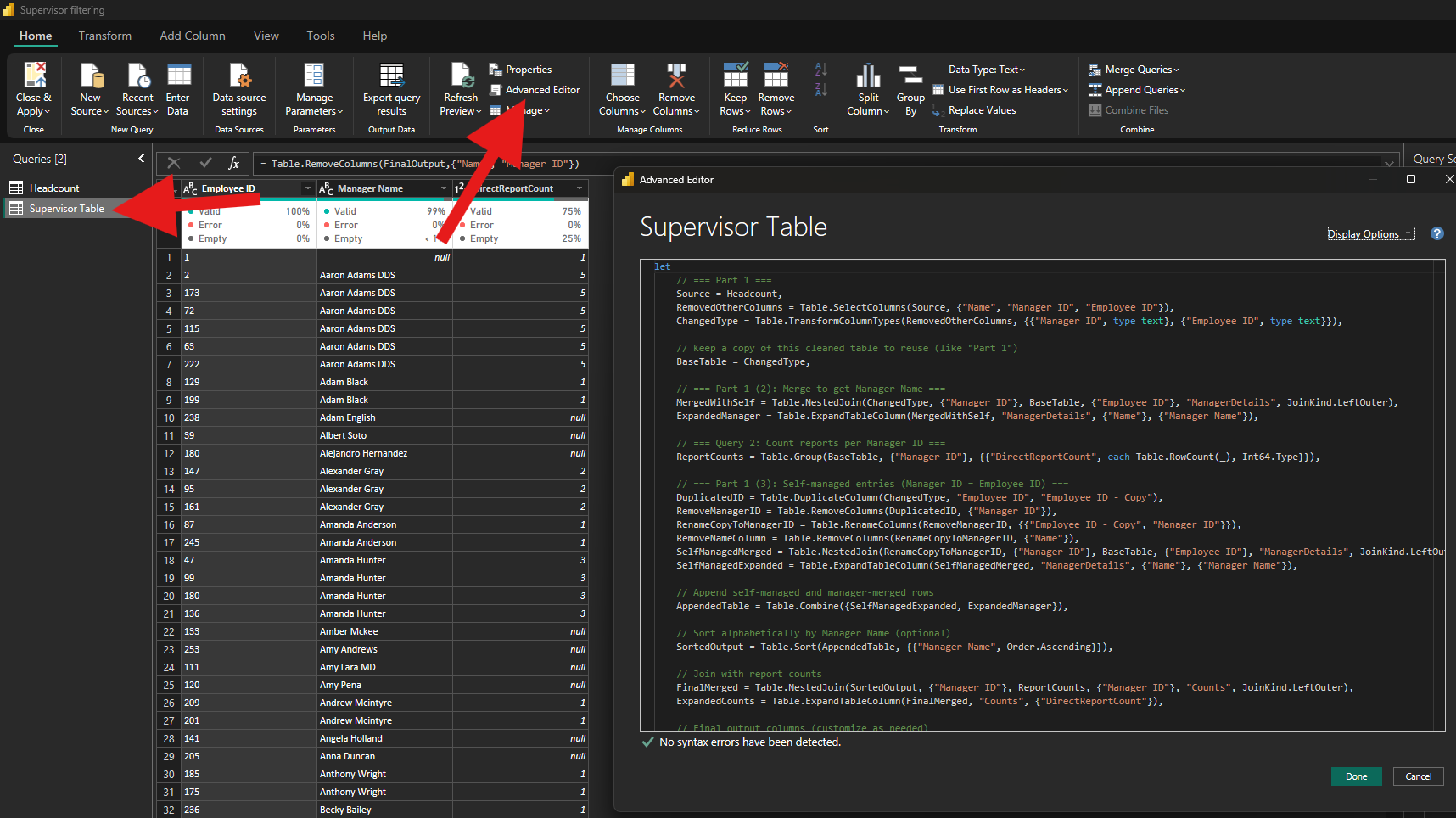
let … in block per query in the Advanced EditorStep 3 — Relationship (slicer bridge only)
You still need one relationship so the slicer filters your report: in Model View, connect
OrgHierarchySlicer[Employee ID] (many) to your base headcount table’s
Employee ID (one), with the filter direction from the bridge toward headcount. You do not add a
second employee table or a relationship between two copies of headcount—the layer columns live on the same headcount query you
already use.
- Go to Model View.
-
Connect
OrgHierarchySlicer[Employee ID]to your headcount employee key (same data type, typically text).

Employee ID → your headcount Employee IDStep 4 — Add the slicer
- Add a Slicer visual.
- Put
SlicerLabelfromOrgHierarchySlicerin the slicer field well. - Hide
AnchorEmployeeIDfrom the report if you do not need it on the canvas.
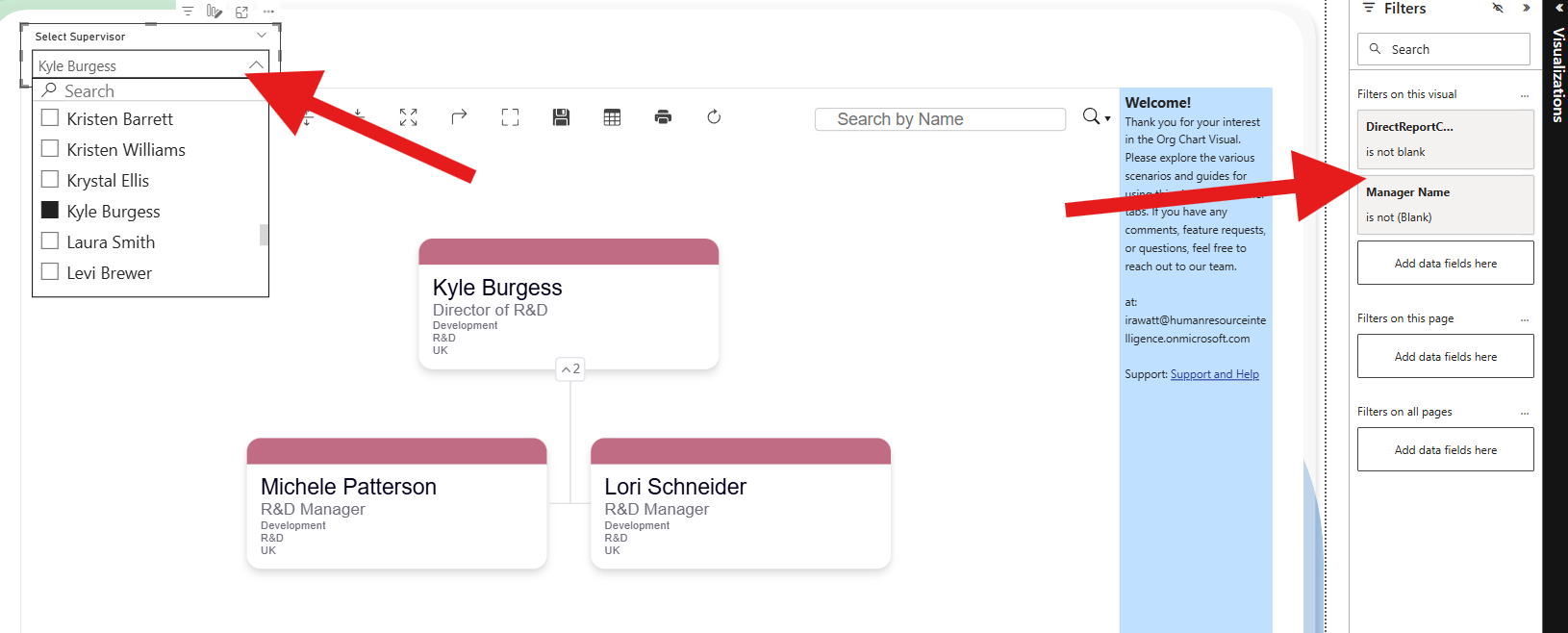
SlicerLabel so users pick a layer and name in one list