Shared inbox replies in Copilot Studio
Classify the message, greet a first-time sender, and draft the reply
A shared inbox collects real customer questions alongside everything else that arrives. We triage ours in Copilot Studio. A new message to the mailbox starts the flow. From there the work is three jobs: decide what the email is, tell a first-time sender that we have it, and draft the reply.
Classify the message
The first step is a model. It reads the new email and classifies it. Customer-related mail stays on the reply path. Other mail is set aside, so the queue the team works from is the mail that needs an answer.
Customer-related mail then goes forward with the message itself: who sent it, and what they asked. That is the context the rest of the flow uses.
A greeting for a first email
The flow checks whether we have replied to this sender before. When we have not, it sends a short greeting straight away. The note confirms that we have the message and that we will be in contact. The person is not left waiting on a silent shared inbox while the fuller answer is prepared.
A drafted reply, with our signature
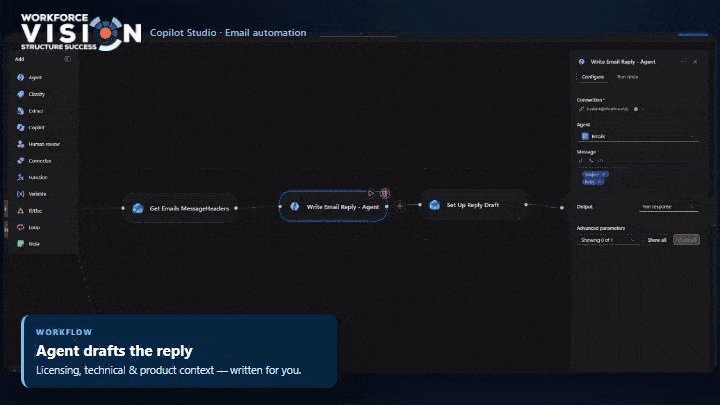
An agent writes the reply. It draws on the licensing, technical, and product context we have given it, so the draft addresses the question in the email. The flow saves that draft in the shared inbox, ready for us to send.
The draft already carries our signature. The logo is embedded in the message with a content ID (CID), so the image travels with the email. The signature displays with the reply, including in mail clients that block pictures loaded from the web.
Where this can go next
The same flow gets more useful as the agent’s source material improves. When a draft is thin, or answers a neighbouring question, we update the knowledge base and the instructions the agent follows. The next email is then drafted against that version. The improvement is iterative: read the drafts, adjust the material, and run the inbox again.
The other step is our CRM. Connecting the flow to the record we already hold for a sender would let the classification and the draft see the account, the open questions, and who should own the reply.
This is the kind of operational automation we build on Microsoft 365. Planning studio is another example, for workforce planning in Power Apps. A flow built around your own mailbox is automation consultancy.